How to Reconnect your Envoy S or IQ Gateway to your WiFi
Follow these steps to get your online monitoring gateway back online
Step 1: Enable Gateway AP mode
Briefly press and release (do not hold) the AP mode button on your Gateway. Doing this will enable AP Mode (access point mode) on your Gateway, creating a wireless network you can join with your phone or laptop.
The AP mode LED (The second LED next to the phone icon) should light up solid green to indicate your Gateway is currently in AP mode.
| Do not long press. Doing so will enable the WPS mode. If you accidentally pressed the button for too long, don't worry. The WPS pairing will timeout in two minutes. If your Wi-Fi router has a |
Step 2: Connect your phone/laptop to the Gateway
Navigate into your phone's or laptop's Wi-Fi settings and connect to the Wi-Fi network titled Envoy_XXXXXX, where "XXXXXX" is the last six digits of your Gateway's serial number.
| Keep note of the last 6 digits (The "XXXXXX" part) of your Gateway's serial number. It will come in handy a bit further in this troubleshooting process. |
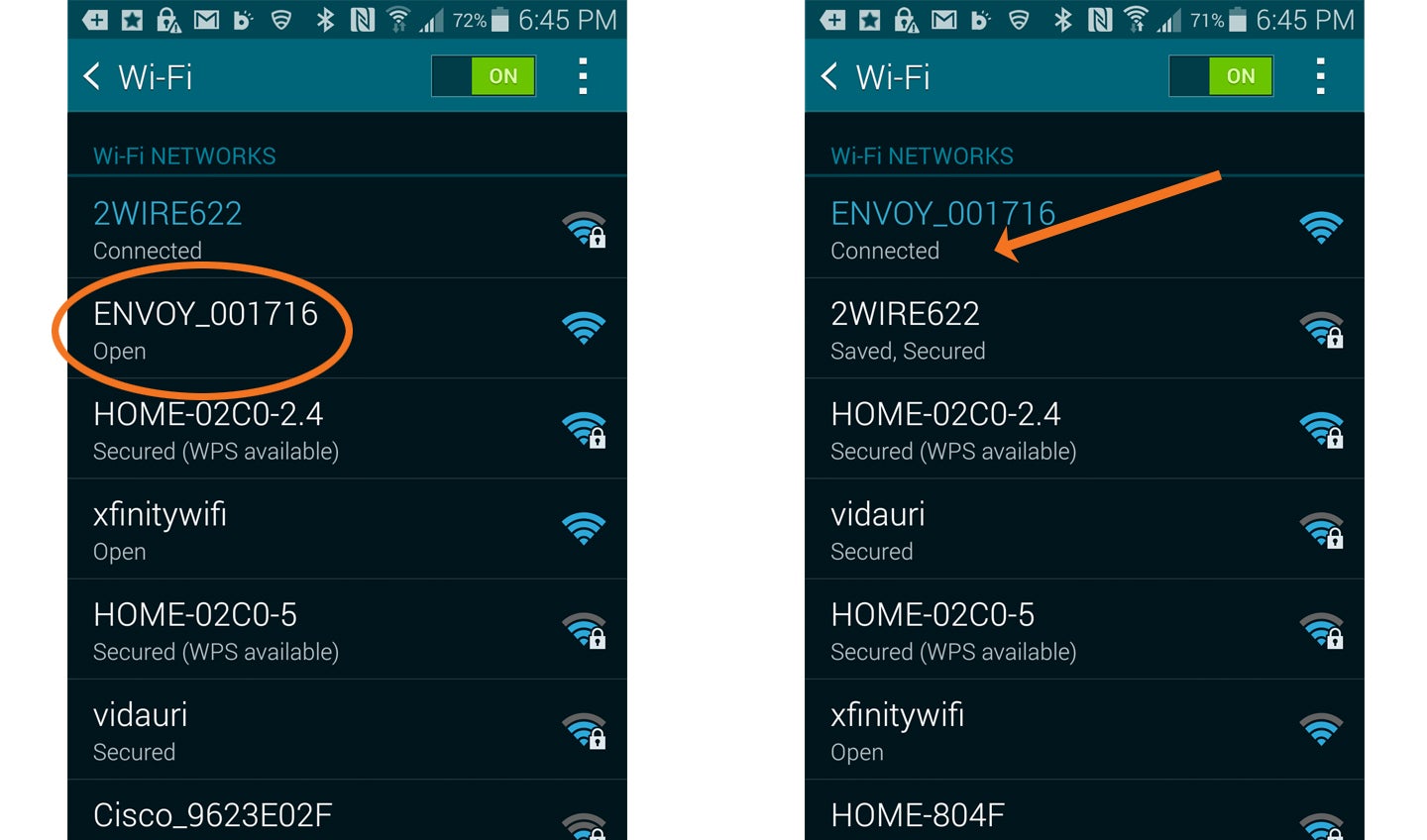
Now open a browser on your device (Chrome, Internet Explorer, Firefox, etc.), and in the address bar, type in 172.30.1.1 (Don't forget the dots!).
Doing so will bring you to the Gateway Configuration page.
Step 3: Forget the old Wi-Fi network.
| If your system is currently not connected to any Wi-Fi network, you can skip this and jump ahead to step 4. |
On the Gateway Configuration page, tap on Wi-Fi in the Monitoring pane. When prompted, provide the Gateway Username (envoy) and password (last six digits of the Gateway's serial number).
On the Wi-Fi configuration page, select More Info > Click Forget this Network > Click Forget.
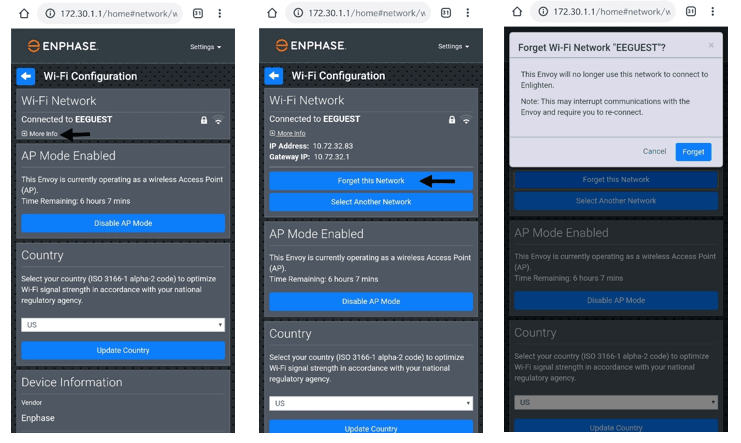
Doing this will disconnect the Gateway from any previously connected Wi-Fi networks enabling it to be connected to a new network.
Step 4: Connect the new Wi-Fi network.
| If your home WiFi does not show up in the above list, check if the Gateway is in range of your Home WiFi network. |
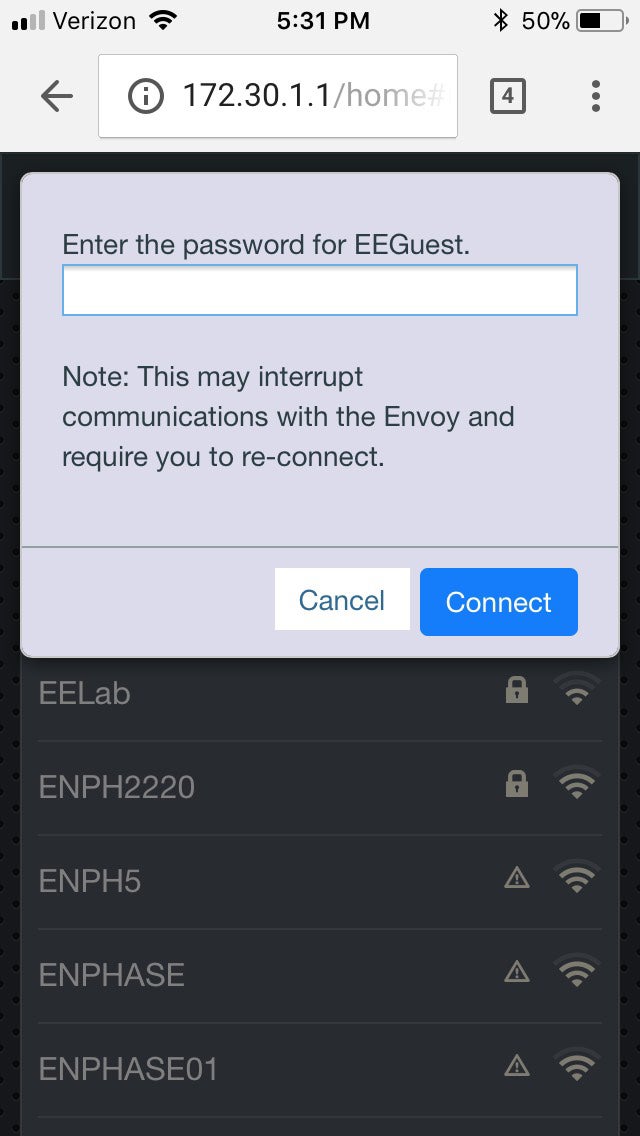
Enter the password for your home network and tap Connect.
Check if the connection was successful.
 | |
| Envoy S/ IQ Gateway | IQ Combiner |
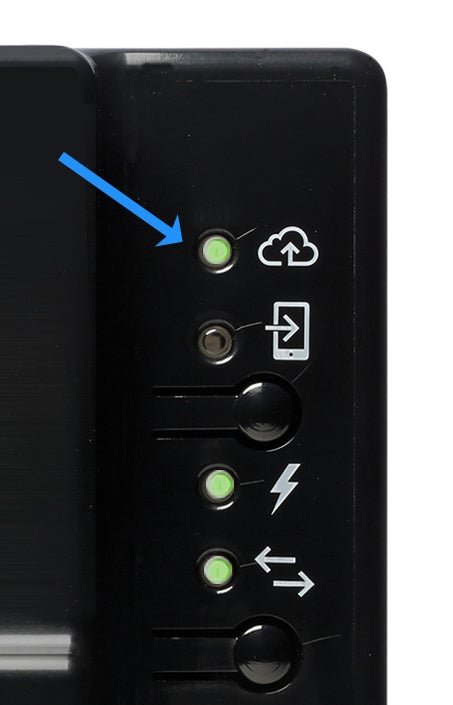
If the top LED light against the cloud icon lights up solid green; Congratulations! You're back online.
Why is my Gateway LED still red and why don't I see my production data even after my Gateway has been reconnected to the internet?
It takes some time for the backed-up data to sync up with Enphase Cloud. Typically it takes about 1 hour for each day of your Gateway being offline. For example, if your Gateway was offline for 30 days your system should fully sync up in about 30 hours.
Related Articles
Setting up monitoring for Enphase system
Wi‑Fi Setup and Commissioning Reliable monitoring begins with a stable network connection. Use the resources below to connect your Envoy or IQ Gateway to Wi‑Fi. Manual Wi‑Fi Setup Guide — step‑by‑step instructions for connecting without WPS ...What do LEDs on the IQ Gateway or Envoy S mean?
Interpreting the LEDs on the Envoy S or IQ Gateway (likely inside the IQ Combiner) The LED/Buttons panel can be arranged horizontally (IQ Combiner) or vertically (IQ Gateway or Envoy S), depending on the gateway model you have. LED indicators on the ...How do I transfer my Enlighten site to Go Green Solar?
If you have already created a monitoring account with Enlighten and want to transfer admin rights to Go Green Solar, follow these steps: Log into Enlighten with your account (app or browser). Click on this link - ...Phase3 Intro
Phase 3 focuses on everything that happens after the panels and equipment are physically installed—the final steps that bring the system online, pass inspections, and get permission to operate. This stage closes out the project and transitions the ...