Tesla Powerwall Sleep State
Waking Powerwall 3 from Sleep State
About Powerwall 3 Sleep State
Beginning with Powerwall software version 24.12, Powerwall 3 will enter a Sleep state when the following is true for more than 10 minutes:
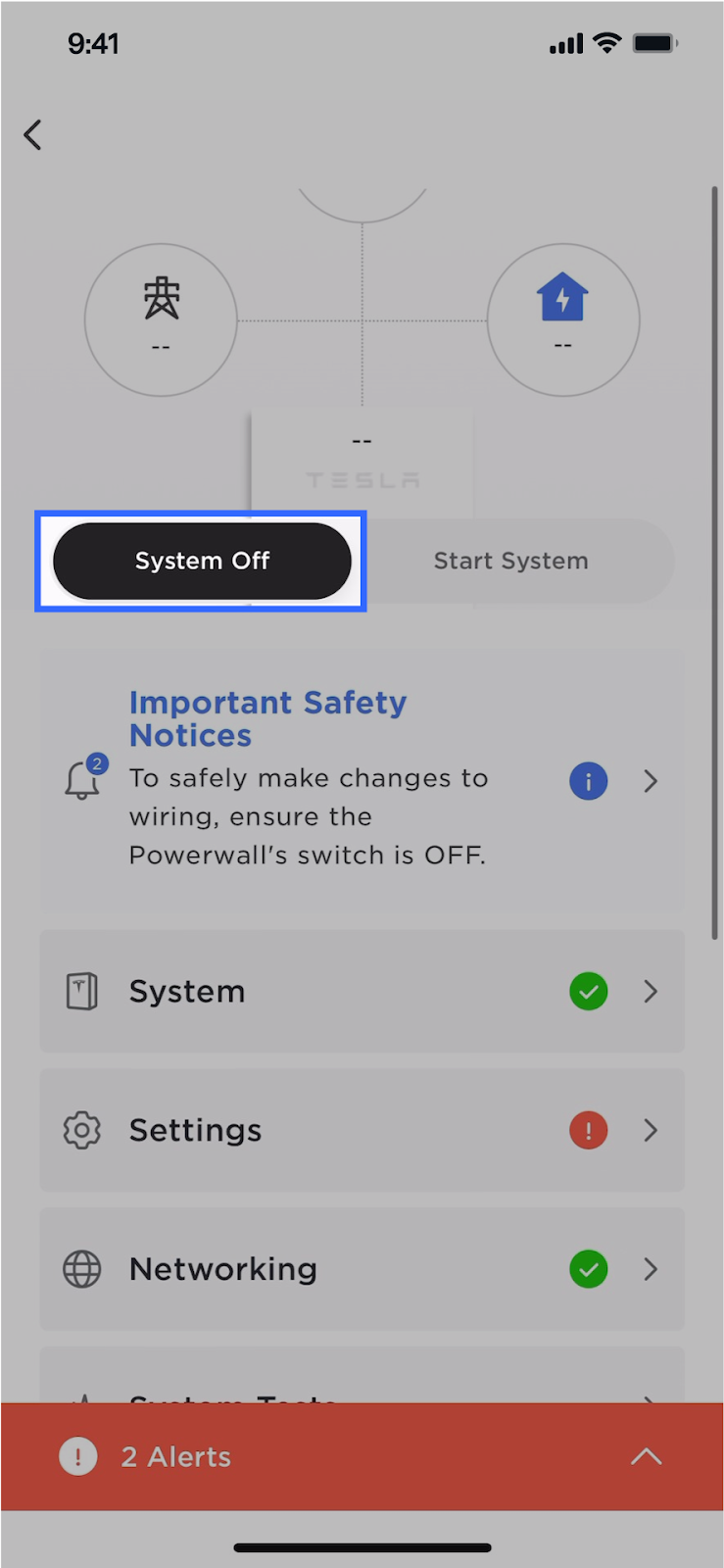
The sleep state ensures that Powerwall 3 does not drain its state of energy (SOE) to 0%, at which point it cannot be recovered.
Every two hours, Powerwall 3 will automatically wake:
Note
Powerwall 3 may enter the Sleep state during installation; the only exception to this rule is when the Powerwall software is updating - in this case Powerwall 3 will not go to sleep. See Waking Powerwall 3 from Sleep State to manually wake a Powerwall 3 that has gone to sleep during installation.
Note
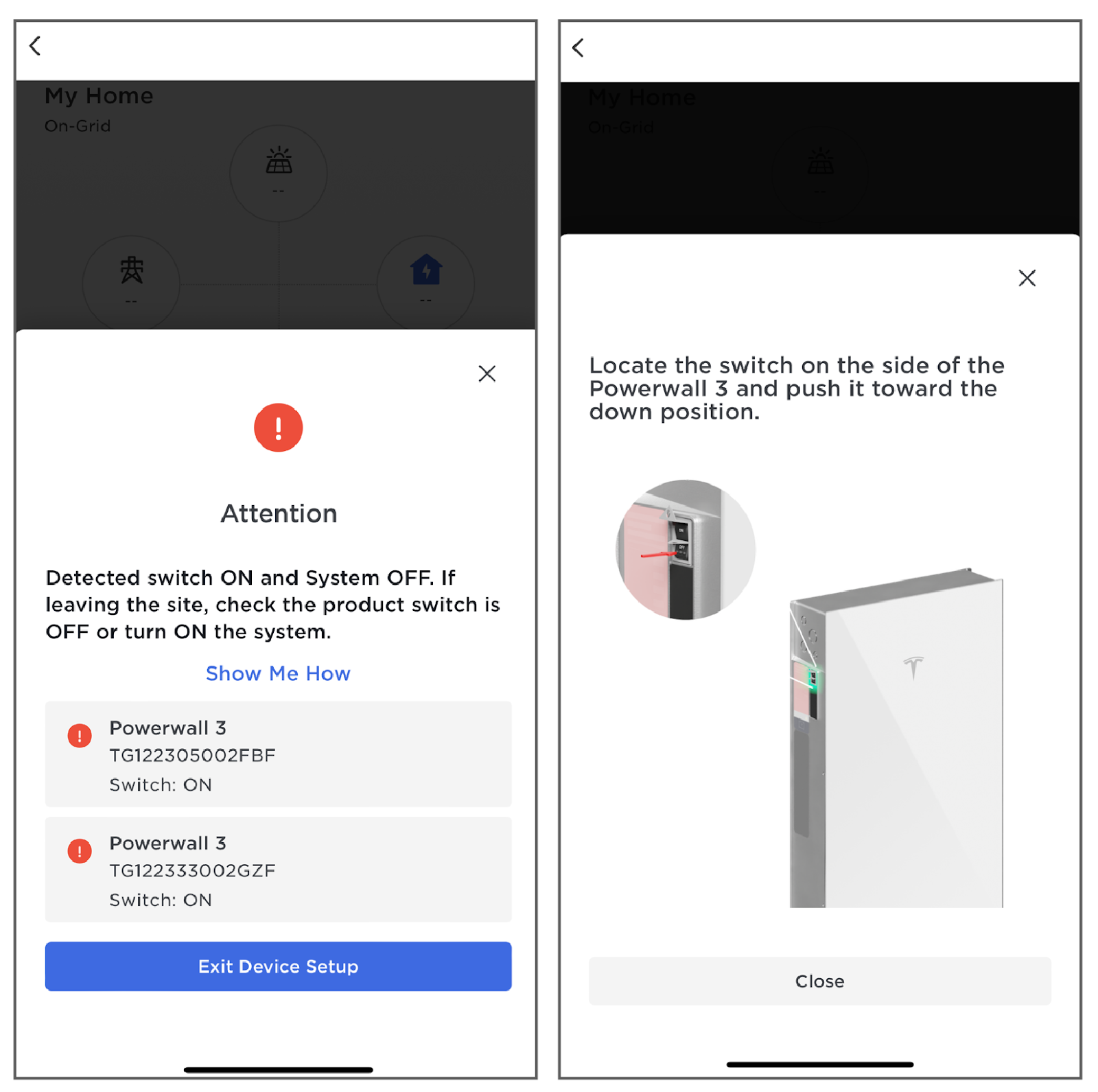
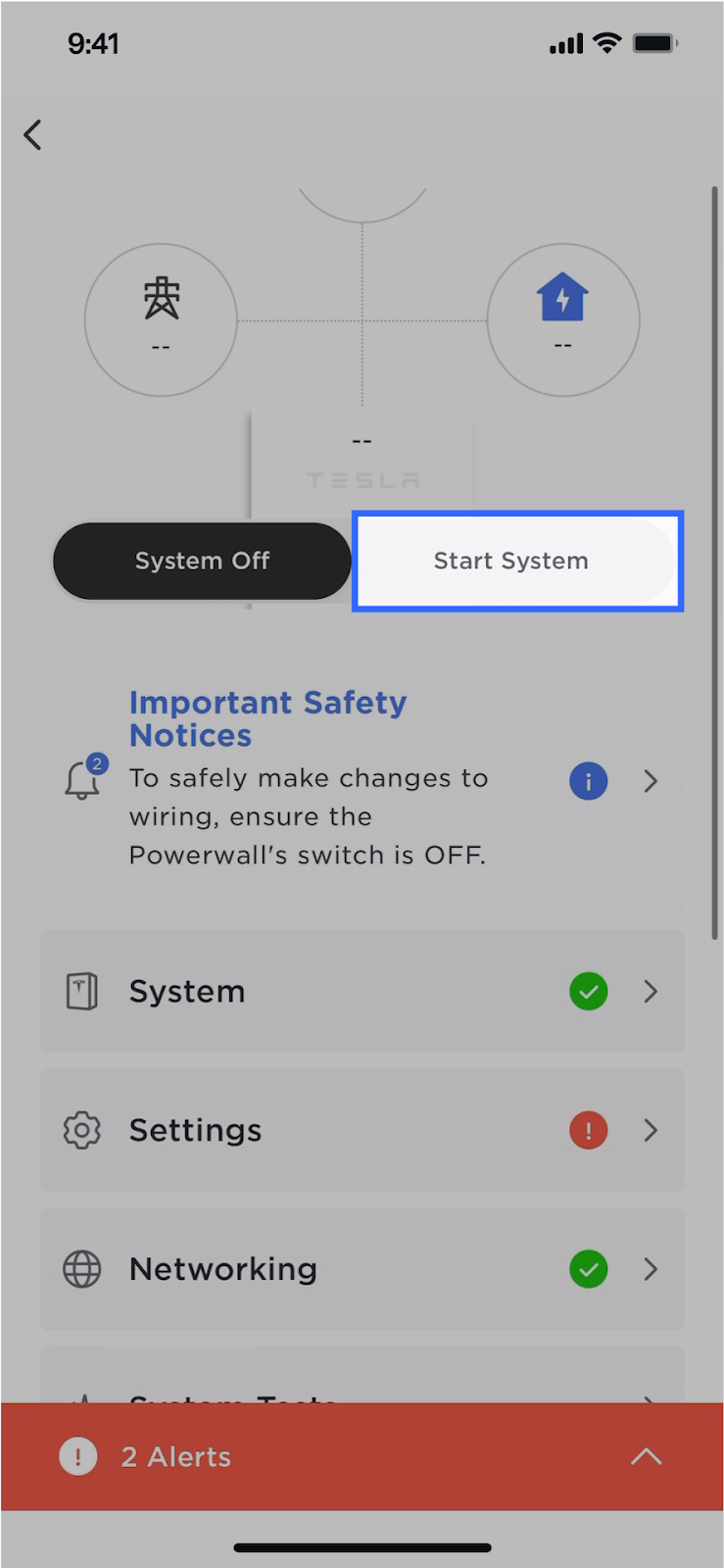
If the installer attempts to exit Tesla One with the Powerwall 3 switch ON and the system OFF, an alert will remind the installer to either start the system or turn the Powerwall 3 switch OFF.
Confirming Powerwall 3 is in Sleep State
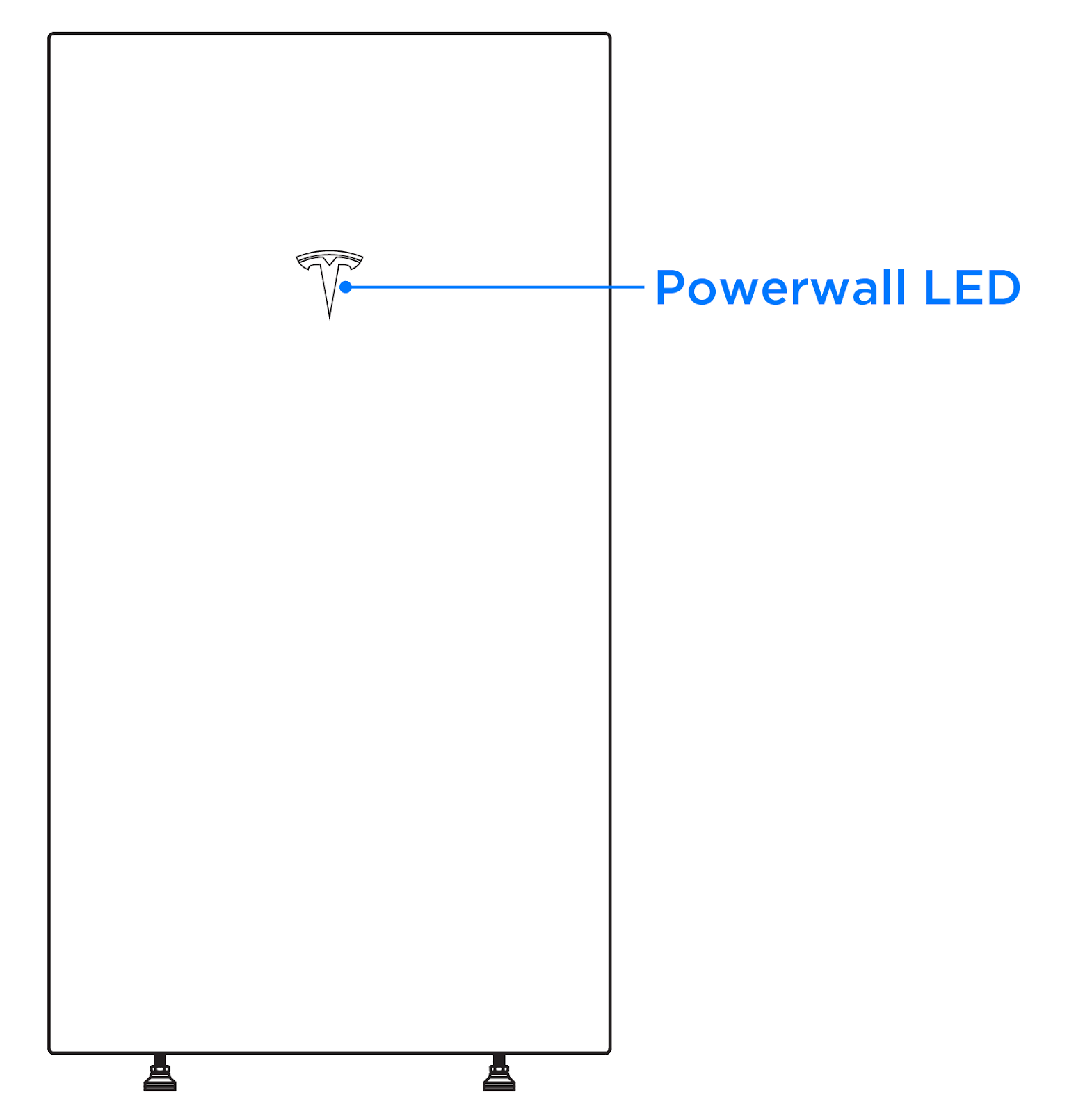
For all Powerwall 3 systems, the logo LED is the primary method of confirming Powerwall 3 is in the Sleep state:
Note
For Powerwall 3 systems installed with Backup Switch or Gateway 3, the Tesla Asset Controller (TACO) LEDs will also be OFF to indicate Powerwall 3 is asleep.
Placing Powerwall 3 in a Stable State
The Powerwall 3 Sleep state is intended to protect Powerwall 3 from draining its SOE to 0%. Rather than leaving Powerwall 3 in this state, do one of the following to leave Powerwall 3 in a stable state:
Waking Powerwall 3 from Sleep State
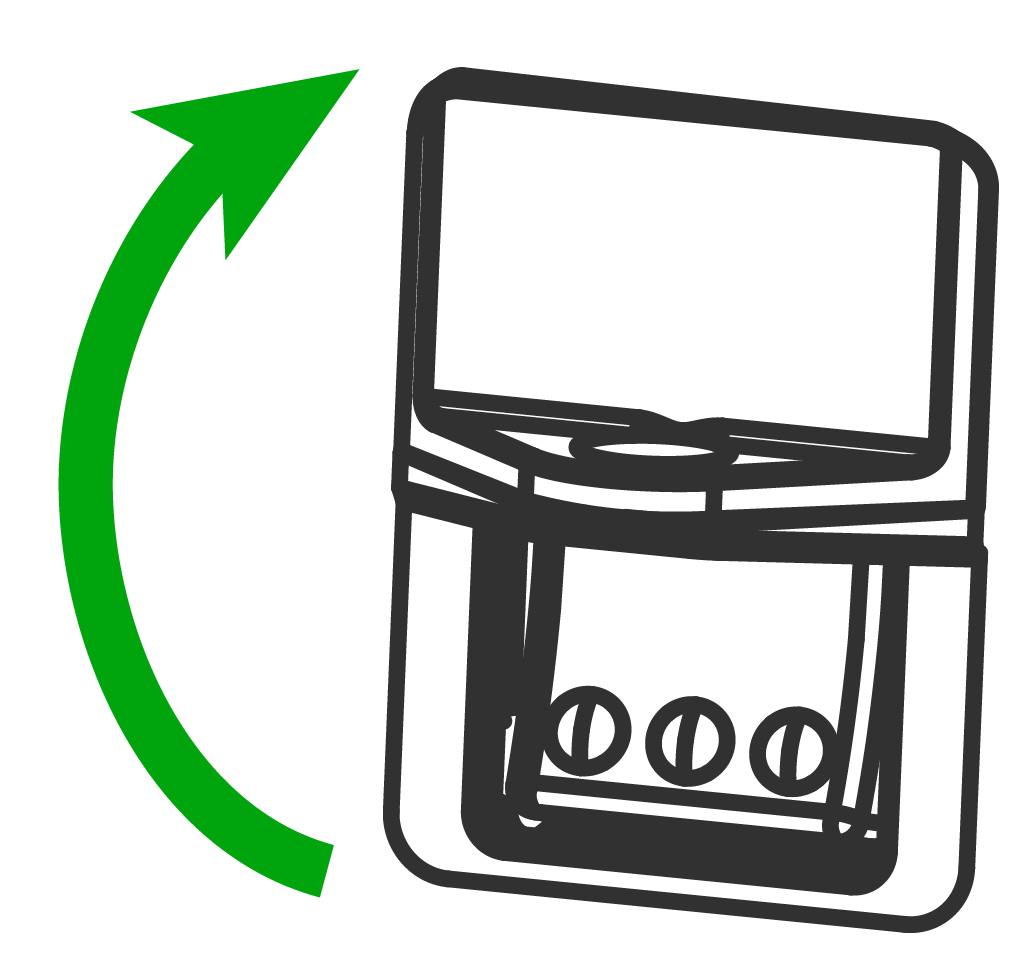
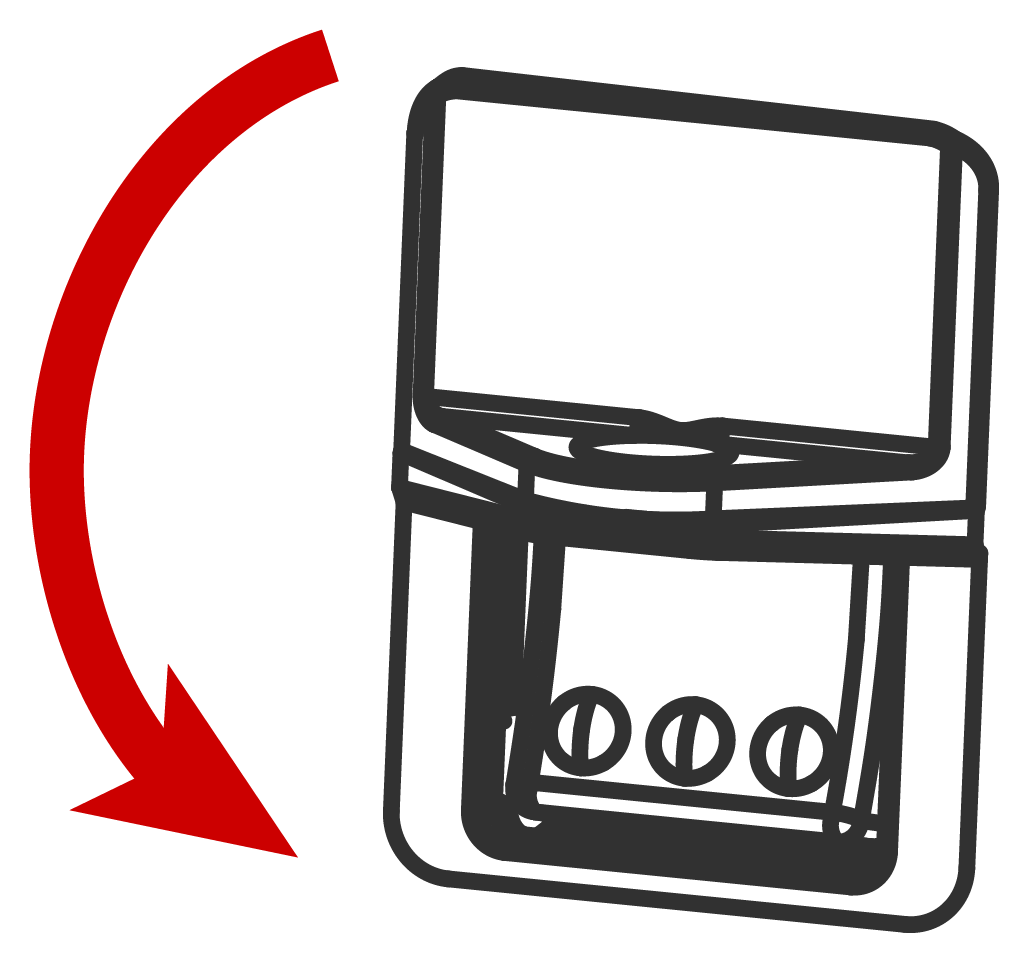
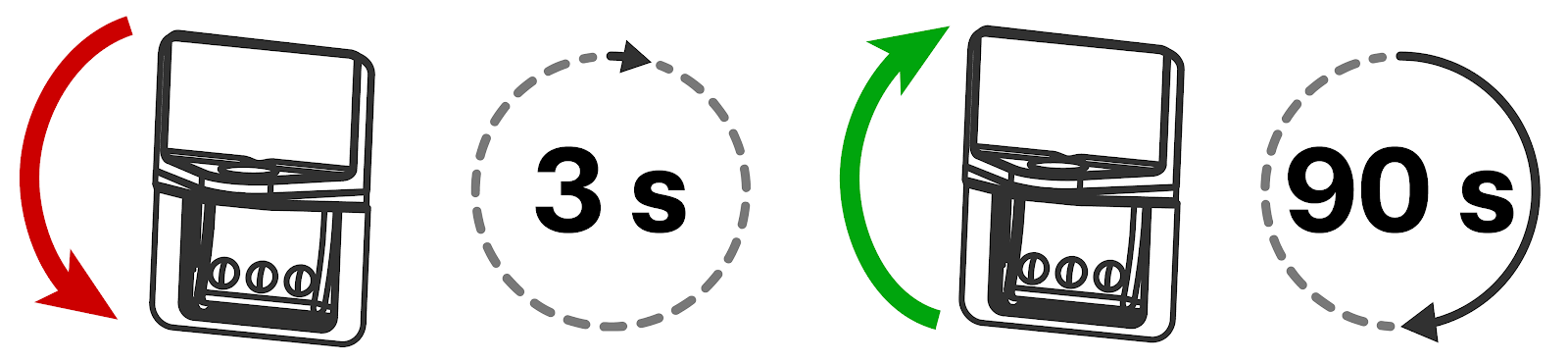
To manually wake Powerwall 3, toggle the Powerwall 3 Enable switch OFF, wait three seconds, then toggle ON. Powerwall 3 will boot up in about 90 seconds, and all LEDs will turn on.
Note
As noted above, Powerwall 3 will automatically wake every two hours; if the system has been started, it will boot up and return to normal operation. This automatic wake-up cycle ensures Powerwall 3 can automatically recover from 0% SOE conditions, such as a long-duration grid outage.